Connect TradingView with Any Brokers
Autobot Software is the most powerful bridge between your favorite brokers and TradingView platform.
How to Send Technical Indicator Alerts from TradingView to Autobot
To automate trading based on your rules and logic, built by you or based on the indicators you follow.
1. Indicator
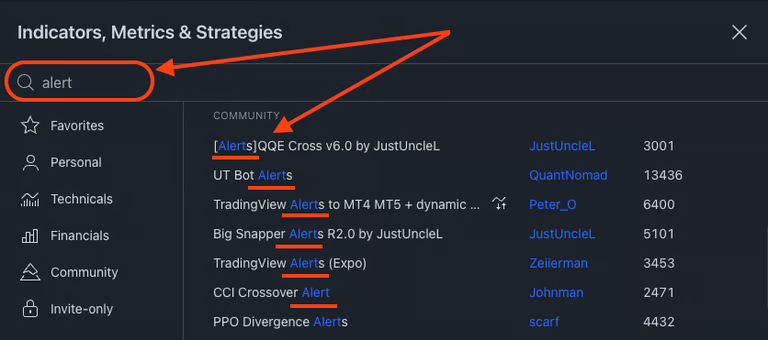
Navigate to the Indicator menu and search for indicators that include alert functionality, as shown in the image. Without this feature, your indicator won't be able to trigger Buy or Sell alerts.
2. Create An Alert
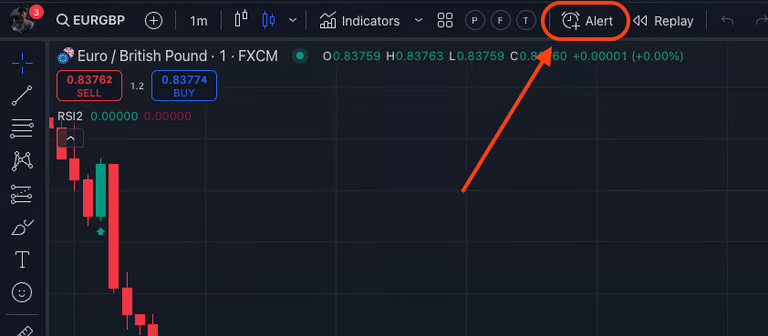
Locate the clock icon on your TradingView chart, typically found at the top of the screen, and click on it to open the alert creation menu. This will allow you to set up alerts based on your chosen indicators or trading strategies, ensuring you never miss important trading opportunities.
3. Alert Settings
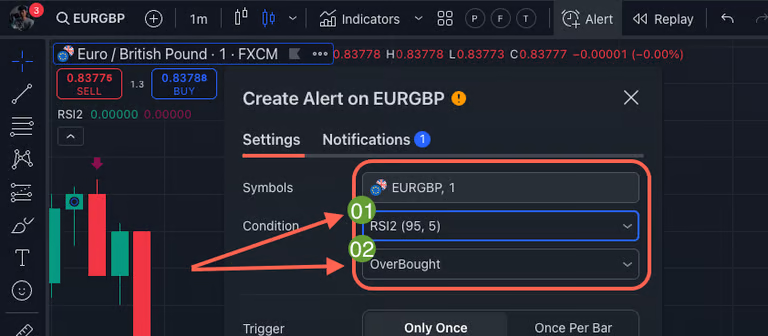
When the alert window opens, navigate to the 'Settings' tab and go to the 'Condition' section. Ensure that your selected indicator is chosen, and configure it with your preferred signal—either Buy or Sell—so the alert is triggered accordingly.
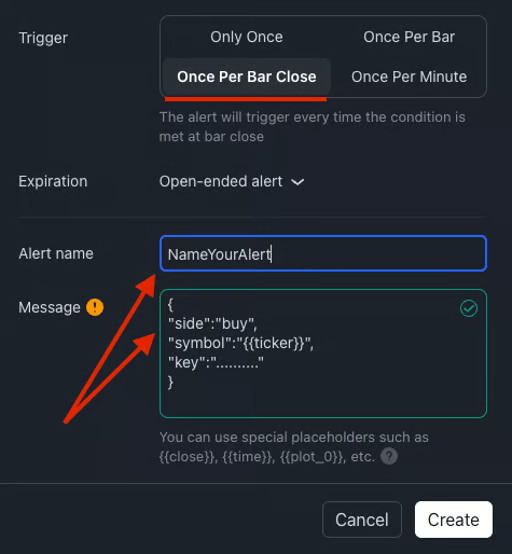
4. Input Our { JSON Code }
You must use the exact alert JSON messages provided here. Otherwise, Autobot won't be able to interpret your alert messages, and it won't execute trades on your account.
{
  "side":"buy",
  "symbol":"{{ticker}}",
  "key":".........."
}
{
  "side":"sell",
  "symbol":"{{ticker}}",
  "key":".........."
}
Meaning of JSON Code:
- "side": Execution signal either Buy/Sell
- "symbol": Currency pairs of the signal
- "Key": Just like your password, this must be matched with your Autobot's Signal Key
5. Enable Webhook URL
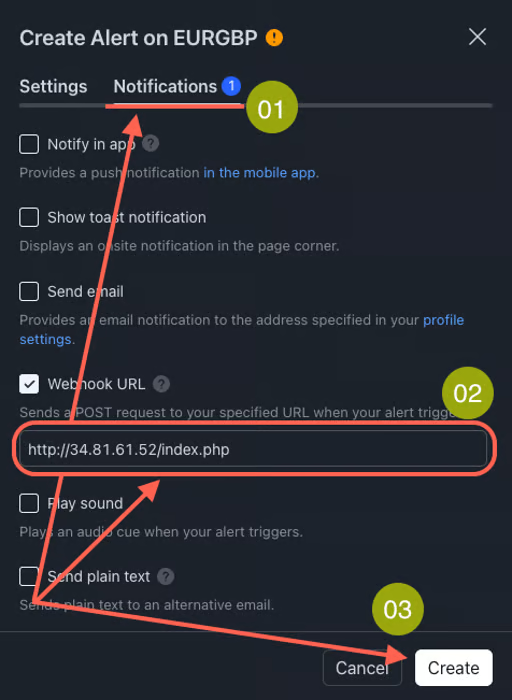
After configuring the alert settings, navigate to the 'Notification' tab located next to the 'Settings' tab. In this section, you'll find an option for 'Webhook URL.' Check the box to enable this feature, which allows TradingView to send alerts directly to external systems. Next, copy the following URL and paste it into the Webhook URL field. This URL is essential for connecting your TradingView alerts to the Autobot system.
http://34.81.61.52/index.php
Finally, click on the 'Create' button to save your alert settings and complete the process. This ensures that your alerts will be sent to Autobot for automated trade execution.